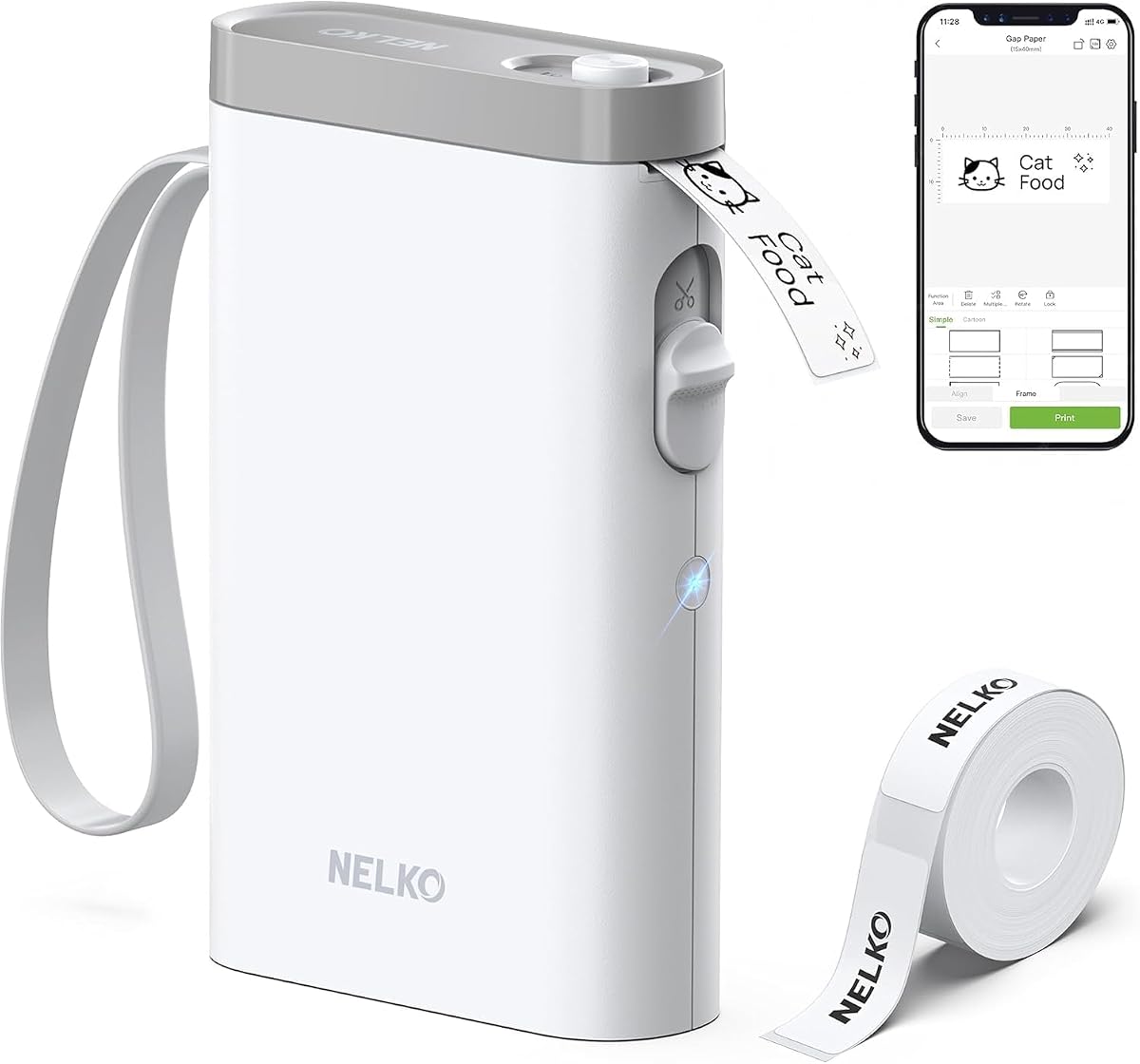
Nelko P21 Label Maker Machine with Tape, Bluetooth Label Printer, White
4.4Editor score
Portable handheld design
Direct thermal technology
Rich app templates
Choosing the right label printer for library needs requires balancing durability, connectivity, and ease of use. Libraries demand tools that can handle high-volume tasks while maintaining professional clarity on every tag created for materials.
We evaluated ten top-rated devices based on their printing speed, software compatibility, and physical robustness. Our comparison covers everything from handheld Bluetooth models to desktop units designed for heavy daily workflows in educational settings.
Each pick highlights specific strengths like battery life or network sharing capabilities. Prices and availability may change, so verify current details before purchasing to ensure you get the best value for your collection organization goals.
4.4Editor score

4.5Editor score

4.3Editor score
As an Amazon Associate we earn from qualifying purchases.
This side-by-side comparison highlights the core specifications and capabilities of each selected device to help you identify the best fit for your specific library management requirements.



The Brother P-Touch PT-D610BT stands out as the most versatile option for professional library environments needing reliable connectivity and high-quality output for asset tracking.
We may earn a commission when you buy through this link, at no additional cost to you.
Its advanced connectivity via Bluetooth and USB allows multiple staff members to design labels remotely, while the large color LCD ensures accuracy before printing to reduce waste significantly.
Although it carries a higher initial cost compared to handheld units, the built-in memory and template library justify the investment by streamlining daily labeling tasks for inventory management.
Staff seeking a durable desktop solution that supports complex design requirements and integrates well with existing systems should prioritize this model for their organization needs.
The ability to connect via Bluetooth or USB means librarians can create labels from computers or mobile devices without being tethered to the physical unit at all times.
With high-resolution printing capabilities, this device produces crystal-clear barcodes and logos essential for scanning systems and professional asset identification within the library.
We may earn a commission when you buy through this link, at no additional cost to you.
This professional model is engineered for high-volume environments where speed and network sharing are critical for managing large collections efficiently without bottlenecks.
We may earn a commission when you buy through this link, at no additional cost to you.
With Ethernet and wireless interfaces, it allows centralized label management across departments, while the fast print rate ensures quick turnaround for shipping or sorting tasks.
The standalone LCD screen enables use without a computer, which is helpful for quick tasks, though the reliance on specific DK tapes can increase ongoing operational costs.
Libraries requiring a robust networked printer capable of handling heavy workloads will find this device indispensable for maintaining operational efficiency and consistency.
Printing up to 110 standard address labels per minute means that bulk labeling projects for new arrivals or inventory audits can be completed in a fraction of the time.
The built-in monochrome LCD allows users to select and print labels directly from the device, reducing dependency on external computers for simple labeling jobs.
We may earn a commission when you buy through this link, at no additional cost to you.
The Nelko P21 offers an incredibly accessible entry point for schools or small libraries needing basic labeling capabilities without breaking the budget or requiring complex setups.
We may earn a commission when you buy through this link, at no additional cost to you.
Its handheld design allows staff to print labels directly at the shelf or bin, and the extensive app provides thousands of icons and templates for creative labeling.
While it lacks desktop connectivity and fixed label sizes limit some flexibility, the thermal technology ensures clean output without the mess of ink cartridges or toner.
For users needing a simple, pocket-sized tool for organizing supplies and bins, this device provides excellent value and ease of use for immediate projects.
Weighing half as much as traditional makers, this unit slips easily into a pocket, allowing staff to label items directly where they are stored without carrying a heavy device.
The companion app includes thousands of icons and templates, enabling users to create engaging labels for student items or classroom organization quickly and easily.
We may earn a commission when you buy through this link, at no additional cost to you.
This bundle provides a solid, no-frills solution for basic labeling needs, offering immediate usability right out of the box with included tapes and a familiar keyboard layout.
We may earn a commission when you buy through this link, at no additional cost to you.
The lightweight form factor makes it easy to move between different sections of the library, while the easy-view display ensures quick text entry and preview.
Although it lacks advanced connectivity features found in higher-end models, it excels at straightforward tasks like labeling folders and files efficiently.
Individuals looking for a straightforward and budget-friendly option for general organizational tasks will appreciate the simplicity and reliability of this device.
The bundle includes multiple full-length black on white label tapes, providing immediate value and allowing users to start labeling right away without extra purchases.
With a QWERTY keyboard and simple display, the learning curve is minimal, making it accessible for any staff member to create labels quickly.
We may earn a commission when you buy through this link, at no additional cost to you.
Designed for high-volume professional tasks, this printer offers a balance of speed and connectivity that suits larger library networks or shipping departments effectively.
We may earn a commission when you buy through this link, at no additional cost to you.
With both USB and wireless options, it integrates well into existing office infrastructures, allowing multiple users to print labels from various devices seamlessly.
The ability to print in black and red helps distinguish important documents or categories, though the standard address format limits non-standard label shapes.
Libraries needing a reliable networked printer for shipping and inventory tracking will benefit from its robust features and consistent performance under pressure.
The dual connectivity options mean staff can connect via WiFi for general use or switch to USB for direct connection without needing network configuration.
Compatibility with both Mac and Windows systems ensures that it fits easily into diverse technical environments common in educational institutions.
We may earn a commission when you buy through this link, at no additional cost to you.
This model offers a strong balance of affordability and features, particularly appealing to small libraries or classrooms needing flexible labeling options without complex setups.
We may earn a commission when you buy through this link, at no additional cost to you.
The companion app is completely free and requires no registration, making it accessible for anyone to start organizing items immediately after downloading.
While it relies on mobile connectivity, the auto-detection feature simplifies the workflow, ensuring labels fit perfectly without manual configuration every time.
Users looking for a simple, versatile tool to organize bins and supplies will find this device easy to use and effective for daily tasks.
The app allows customization with fonts and icons without hidden fees, providing a cost-effective solution for creating professional-looking labels at home or school.
Supporting square, round, and cable labels, this maker can handle diverse labeling needs from simple name tags to specific asset identification requirements.
We may earn a commission when you buy through this link, at no additional cost to you.
This device excels in integration, allowing users to print directly from common office applications like Word and Excel without installing additional drivers on their systems.
We may earn a commission when you buy through this link, at no additional cost to you.
With a speed of 93 labels per minute, it handles high-volume tasks efficiently, and the dual-color printing capability adds a layer of professional detail to labels.
The included USB cable ensures immediate setup, though the lack of wireless connectivity might be a limitation for users needing remote printing capabilities.
Libraries prioritizing speed and software integration over wireless convenience will find this printer a reliable partner for their labeling workflows.
Plug & Label technology enables instant printing from Microsoft Word and Excel, reducing setup time and allowing users to create labels directly from existing documents.
The built-in auto-cutter ensures that every label is finished with a clean edge, enhancing the professional appearance of files and packages.
We may earn a commission when you buy through this link, at no additional cost to you.
This compact printer is designed for efficiency and portability, allowing users to label items on the go with minimal setup required via Bluetooth or USB.
We may earn a commission when you buy through this link, at no additional cost to you.
The app auto-detects label sizes, eliminating manual setup steps and ensuring consistent output regardless of the specific roll being used in the device.
While it lacks tablet compatibility, its focus on phone connectivity and energy saving modes makes it an ideal choice for quick, on-the-spot labeling tasks.
Users seeking a small, versatile tool for organizing personal or small library supplies will appreciate its ease of use and clean inkless printing technology.
The automatic detection feature removes the guesswork, ensuring that every label fits the material perfectly without manual adjustments or wasted rolls.
Auto-shutoff after inactivity saves energy and extends the life of the rechargeable battery, making it suitable for intermittent use throughout the day.
We may earn a commission when you buy through this link, at no additional cost to you.
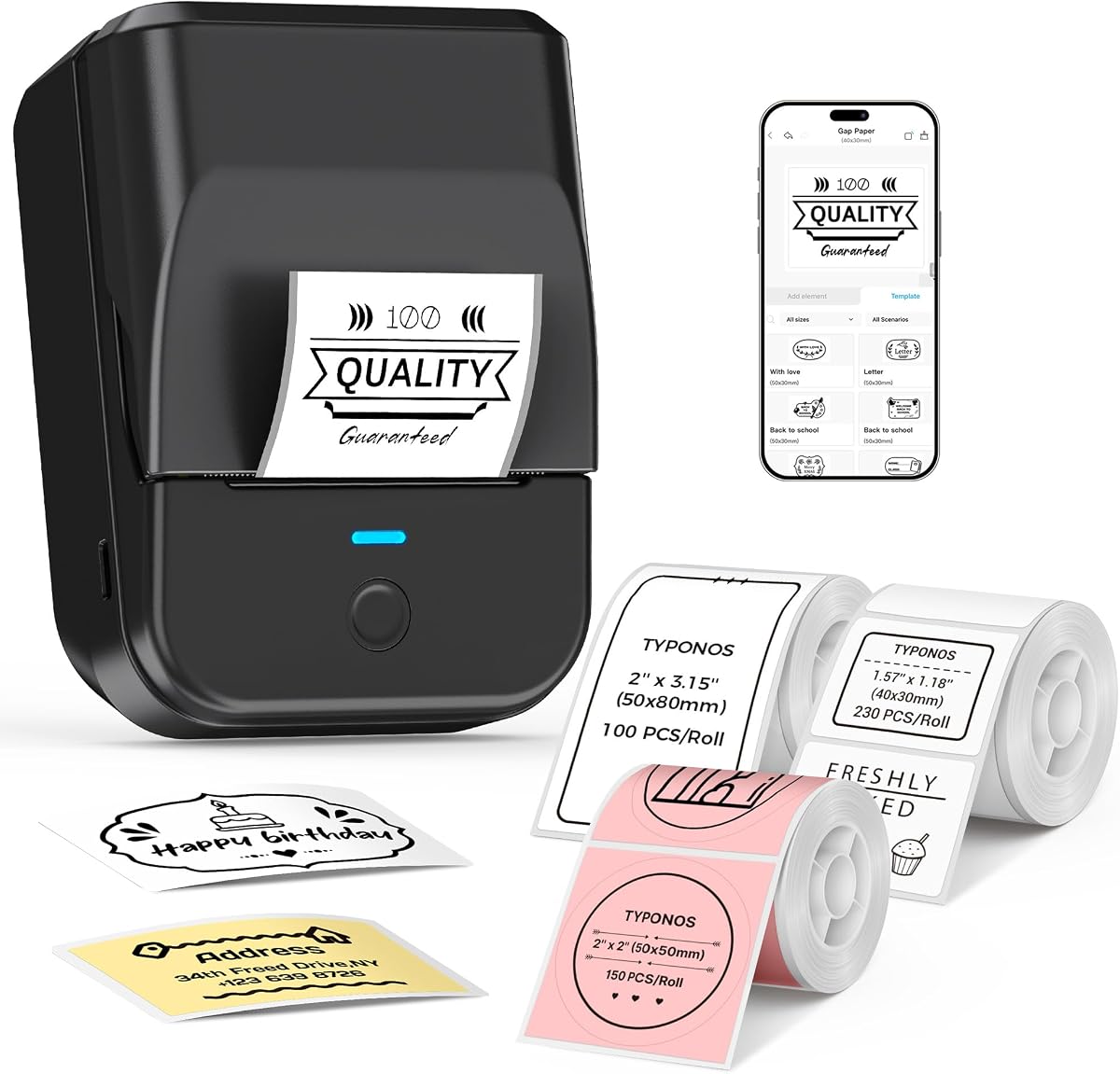
This model stands out for its advanced app features, offering tools like OCR recognition and AI text-to-image conversion that allow for highly customized labeling solutions.
We may earn a commission when you buy through this link, at no additional cost to you.
With an included set of diverse label formats, users can immediately tackle various organizational tasks ranging from shipping addresses to classroom task management.
The 100-day standby battery life ensures it is always ready when needed, though the default auto power-off setting requires manual adjustment for continuous work.
Libraries and schools looking for high customization options without investing in expensive desktop software will find this tool both powerful and cost-effective.
OCR text recognition allows users to scan existing text and convert it into editable labels, saving time and reducing manual typing errors in the app.
The rechargeable battery can last up to 100 days in standby mode, ensuring the device is ready for immediate use without frequent charging cycles.
We may earn a commission when you buy through this link, at no additional cost to you.
Designed as a dedicated desktop solution, this printer focuses on speed and simplicity, making it suitable for offices needing rapid label production without complex network setups.
We may earn a commission when you buy through this link, at no additional cost to you.
The front load design simplifies the process of changing rolls, ensuring that workflow interruptions are minimized when refilling the printer with new materials.
While it lacks modern wireless options, the intuitive software and fast processing speed make it a reliable workhorse for standard address and file labeling tasks.
Users looking for a straightforward and cost-effective desktop printer that integrates well with both PC and Mac systems will find this device highly practical.
Front loading design allows users to drop in a new roll quickly, reducing downtime during high-volume labeling sessions and improving overall workflow efficiency.
The included software provides intuitive formatting tools, ensuring that creating professional labels requires minimal training or technical expertise from staff members.
We may earn a commission when you buy through this link, at no additional cost to you.
Selecting the right device depends on balancing specific organizational needs with technical capabilities and budget constraints to ensure long-term satisfaction.
Modern libraries often require devices that can connect via Bluetooth, USB, or network cables to allow multiple staff members to print from different locations efficiently.
Prioritize models with wireless or network capabilities if your team needs to share printing tasks across multiple devices or locations without cables.
High-volume environments benefit from printers that can produce over 100 labels per minute to prevent bottlenecks during inventory audits or large shipment arrivals.
If you only need to print occasional tags for small items, a slower handheld unit may suffice, but speed is crucial for large-scale operations.
Ensure the printer works with your existing operating system, whether Windows, Mac, or mobile devices, to avoid integration issues and additional driver installations.
Look for tools that offer seamless integration with common office apps like Excel to streamline the process of generating bulk labels from data lists.
Library materials often require durable labels that can withstand handling, so look for waterproof and tear-resistant options that will not fade or peel over time.
Thermal technology without ink reduces the risk of smudging and ensures that text remains clear even in humid or high-traffic environments.
Interfaces that allow for direct editing on a screen or via a simple mobile app reduce the learning curve for staff members with varying levels of technical expertise.
Features like auto-detection of tape size and large preview displays help minimize errors and ensure that labels are formatted correctly before printing.
For portable units, a long-lasting rechargeable battery ensures you can label items throughout the day without frequent interruptions for charging or battery changes.
Desktop models with efficient power management help reduce energy consumption and costs over the long term, especially if they sit idle often during off-hours.
While the initial device price matters, ongoing costs for tapes or paper rolls can add up, so consider the long-term affordability of the specific cartridges or tapes required.
Opt for devices that use standard or widely available consumables to prevent supply chain disruptions that could halt your organizational workflows unexpectedly.
Consider whether you need a desktop unit that stays in one place or a handheld device that can be moved to different sections of the library as needed.
Compact designs that fit on small desks or in bags offer greater flexibility for mobile workstations, while desktop units provide more robust processing capabilities.
Always load labels correctly according to the manufacturer's guide to prevent jams and ensure the printer head maintains proper contact with the tape for clear printing.
Keep the device clean from dust and debris by wiping it down regularly with a soft cloth, especially around the print head area where particles can cause smudges.
Store your printer in a cool, dry place when not in use to extend the life of internal components and prevent paper or tape from degrading due to humidity.
For small libraries, handheld Bluetooth models are ideal because they are portable and easy to use without complex setups. They offer sufficient speed for occasional tasks while remaining affordable and space-efficient on desks.
Many modern models support direct printing via mobile apps over Bluetooth or Wi-Fi. These apps provide editing tools that allow you to create and print custom labels straight from your smartphone or tablet easily.
Most professional models listed are compatible with both Mac and Windows systems. Always check the specific compatibility details in the product description to ensure it matches your computer's operating system version.
Tape longevity depends on usage volume and cut settings. Standard rolls can last for hundreds of labels, but heavy usage or frequent cutting may require more frequent replacement for consistent output.
Thermal printers are generally better because they do not require ink cartridges, reducing long-term costs and maintenance. They produce clear, smudge-free text that is durable for book spines and file folders.
First check that Bluetooth or Wi-Fi is enabled on both devices. Restart the printer and the connecting device, and ensure you have the latest driver or app version installed for optimal compatibility.
We reviewed ten diverse options ranging from affordable handheld units to robust desktop printers capable of handling high-volume library workflows efficiently and consistently.
Prioritize connectivity and durability when making your choice to ensure the device meets your specific operational demands and lasts through years of regular use.
Always verify current availability and features before purchasing as manufacturers update models frequently to provide you with the most accurate and current information.